
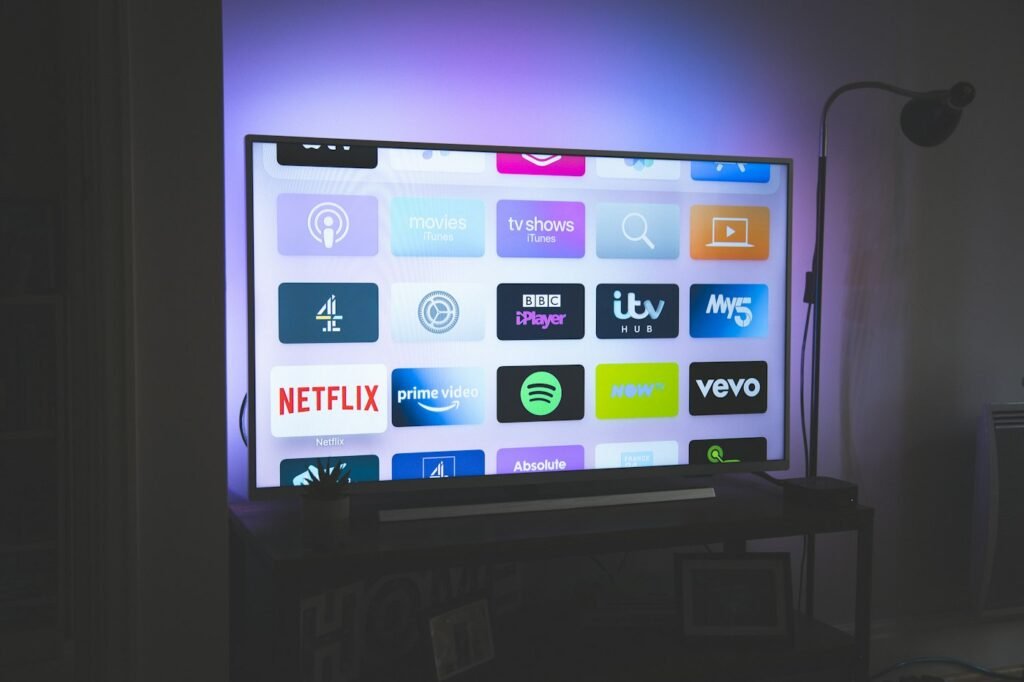
Xtreme HD IPTV runs smoothly on every Amazon Firestick and Fire TV device, and setting it up is much easier than most people think. You don’t need a computer, a cable or any technical knowledge: just your remote, an internet connection and about ten minutes. This guide walks you through the full installation, explains which player to choose, and shows you how to solve the small problems that sometimes appear the first time.
Why Use Xtreme HD IPTV on a Firestick?
The Amazon Fire TV Stick is one of the most popular streaming devices in the world. It plugs into any HDMI port, turns any TV into a smart TV, and supports the IPTV players that work best with our service. With Xtreme HD IPTV on your Firestick you get:
- More than 20,000 live channels from the US, UK, Canada and around the world.
- Over 40,000 movies and series on demand, many in 4K.
- A full TV guide (EPG) for every channel.
- Anti-Freeze technology for stable live sports.
Before You Start
Have these things ready before you install Xtreme HD IPTV on your Firestick:
- A Firestick or Fire TV device. Any model works. For 4K channels, use a Fire TV Stick 4K, 4K Max or Fire TV Cube.
- A good internet connection. Around 10 Mbps for HD and 25 Mbps for 4K. See how much internet speed you need.
- Your Xtreme HD IPTV login (username, password and server URL). You receive it instantly after choosing a plan on our pricing page.
Step 1: Install the Downloader App
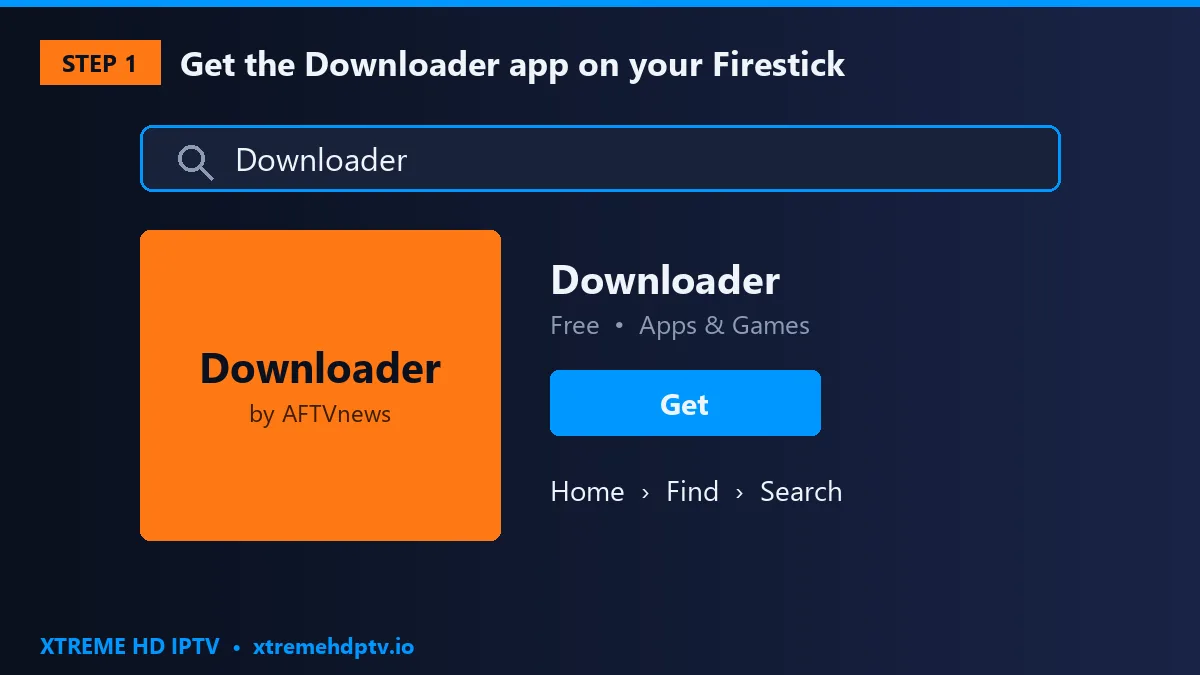
Most IPTV players are not in the Amazon Appstore, so you need a small free tool called Downloader to install them. From the Firestick home screen, select Find, then Search, type Downloader and choose the orange app by AFTVnews. Click Get (or Download) and wait a few seconds for it to install.
Step 2: Allow Apps from Unknown Sources
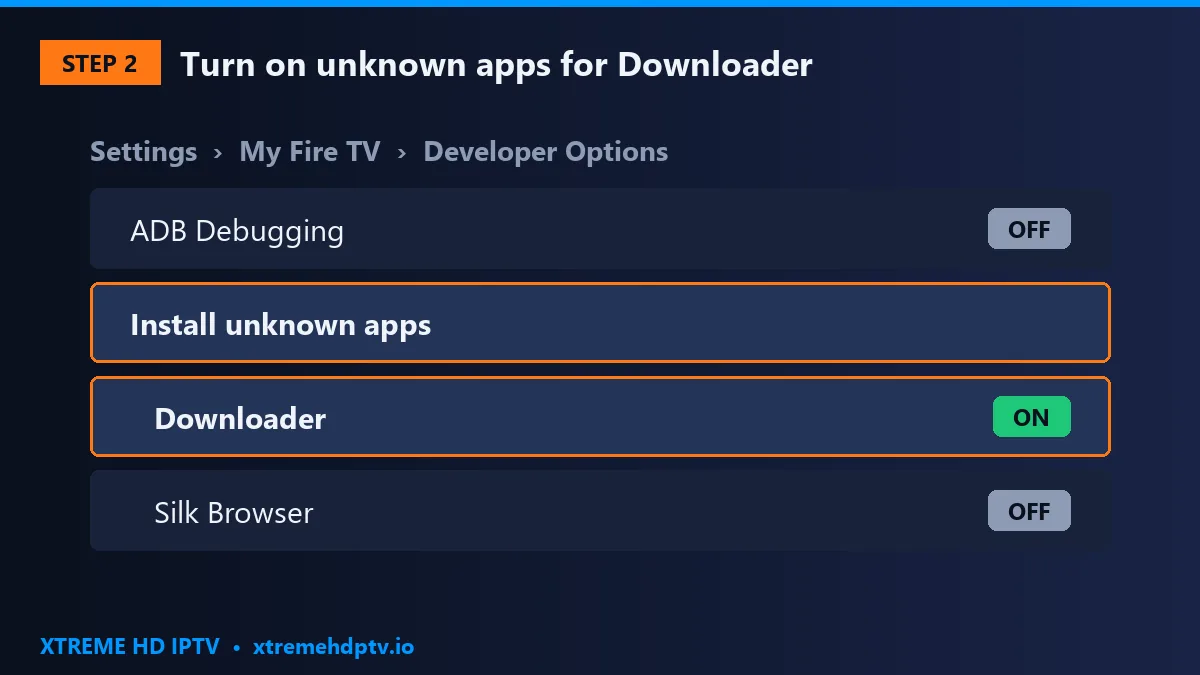
For security, Fire TV blocks apps from outside the Appstore by default. You only need to allow Downloader once:
- Go to Settings › My Fire TV › Developer Options.
- Select Install unknown apps.
- Find Downloader and turn it ON.
Can’t see Developer Options? Go to Settings › My Fire TV › About, highlight your device name and press the select button seven times. A message tells you that you are now a developer, and the menu appears.
Step 3: Install Your Xtreme HD IPTV Player
You have two options. Both give you exactly the same channels:
Option A: The Xtreme HD IPTV app
Our own Xtreme HD IPTV app is built for Android-based devices, including Firestick. Open Downloader, type the download code our support team sends you, click Go and then Install. This is the easiest choice for beginners because the app is already set up for our service.
Option B: IPTV Smarters Pro or TiviMate
If you prefer a well-known player, Xtreme HD IPTV also works with IPTV Smarters Pro and TiviMate. TiviMate is a favourite for its fast TV guide, while IPTV Smarters is very simple to use. Install them with Downloader in the same way, using the code or link our team provides.
After installation, Downloader asks if you want to delete the setup file. Choose Delete to save space on your Firestick.
Step 4: Sign In to Xtreme HD IPTV
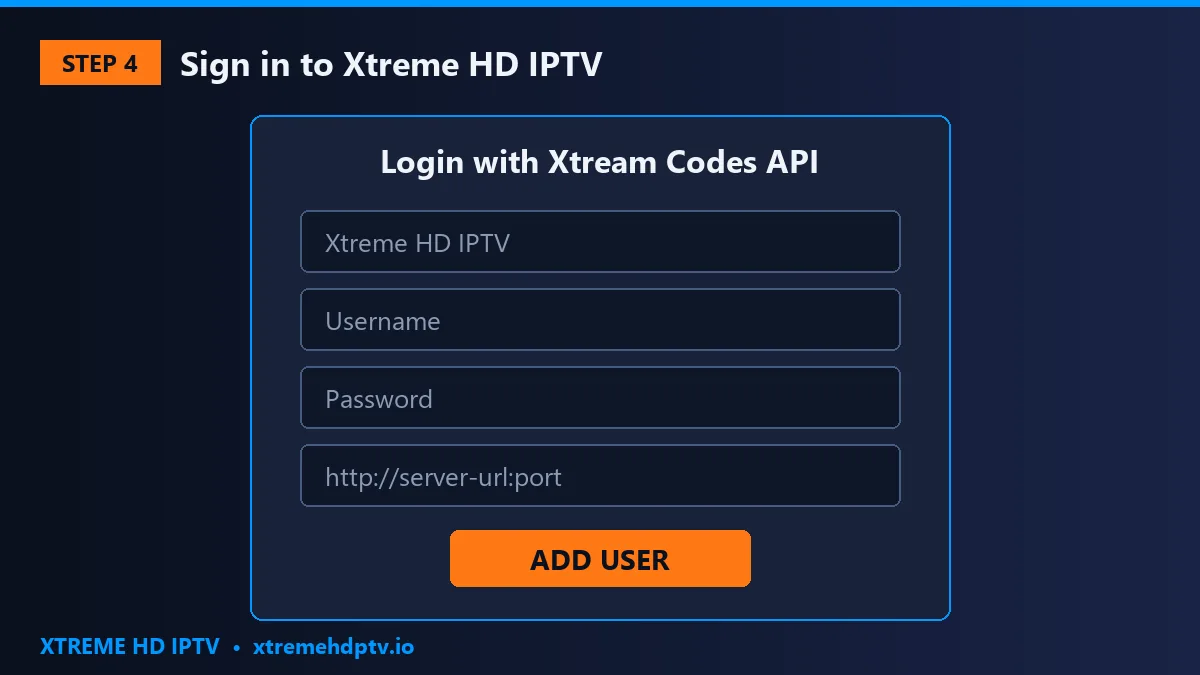
Open the player you installed and choose Login with Xtream Codes API. Then fill in:
- Name: anything you like, for example “Xtreme HD IPTV”.
- Username and Password: from your welcome message.
- Server URL: from your welcome message, including
http://and the port.
Click Add User. Not sure whether to use Xtream Codes or an M3U link? Read M3U vs Xtream Codes.
Step 5: Load Your Channels and Start Watching
The first time you sign in, the player downloads your channel list, movies, series and TV guide. This usually takes one to two minutes. When it finishes, open Live TV, pick a category such as Sports or News, and enjoy. To find what is on later, learn how to use the EPG and Catch-Up TV.
Which Firestick Is Best for Xtreme HD IPTV?
| Model | Max quality | Our opinion |
|---|---|---|
| Fire TV Stick Lite | Full HD | Fine for small HD TVs |
| Fire TV Stick | Full HD | Good value for most HD TVs |
| Fire TV Stick 4K | 4K | Great for 4K channels |
| Fire TV Stick 4K Max | 4K | Best choice: fastest menus, Wi-Fi 6 |
| Fire TV Cube | 4K | Most powerful, built-in Ethernet |
Quick Fixes for Common Problems
“App not installed”: check that Install unknown apps is ON for Downloader and that you have at least 500 MB of free space.
Login failed: the username and password are case-sensitive. Type them again carefully, without spaces at the start or end.
Channels freeze: restart your router and Firestick, and use the 5 GHz Wi-Fi band or an Ethernet adapter. Our full guide on how to fix IPTV buffering has more solutions.
The Firestick gets slow: uninstall apps you don’t use and clear the player cache from Settings › Applications › Manage Installed Applications.
Tips to Get the Most from Xtreme HD IPTV
- Create a favourites list with the channels you watch most.
- Use an HDMI extender if your Firestick gets hot behind the TV.
- Restart the Firestick once a week to keep it fast.
- Keep your Fire TV software updated in Settings › My Fire TV › About.
Frequently Asked Questions
How long does it take to install Xtreme HD IPTV on Firestick?
About 10 minutes for the first installation. After that, your channels are always one click away.
Can I use one Xtreme HD IPTV subscription on several Firesticks?
Yes, if your plan includes several devices. Xtreme HD IPTV offers plans from 1 to 5 devices. Compare them on our pricing page.
Do I need a VPN?
A VPN is not required to install or use the service, but some customers choose one for extra privacy.
Does Xtreme HD IPTV work on older Firesticks?
Yes. Older models work well for HD channels. For 4K, we recommend a 4K or 4K Max model.
Looking for more help? Browse all our Xtreme HD IPTV setup guides and our IPTV tips and news.
Conclusion
Installing Xtreme HD IPTV on a Firestick takes five simple steps: install Downloader, allow unknown apps, install your player, sign in and start watching. If you get stuck at any point, our 24/7 support team is happy to help. For other devices, see the full Xtreme HD IPTV setup guide, or contact us and we will guide you step by step.
Need help with your IPTV?
Our team is available 24/7 to help you install and use your subscription on any device.
CONTACT US ON WHATSAPP