

Two features turn Xtreme HD IPTV into a complete TV service: the EPG, which shows you what is on every channel, and Catch-Up TV, which lets you replay programs you missed. Used together, they mean you never have to scroll through thousands of channels hoping to find something, and you never lose a match because you came home late. This guide explains how both features work, how to switch them on in popular players, and how to fix the most common problems.
What Is the EPG?
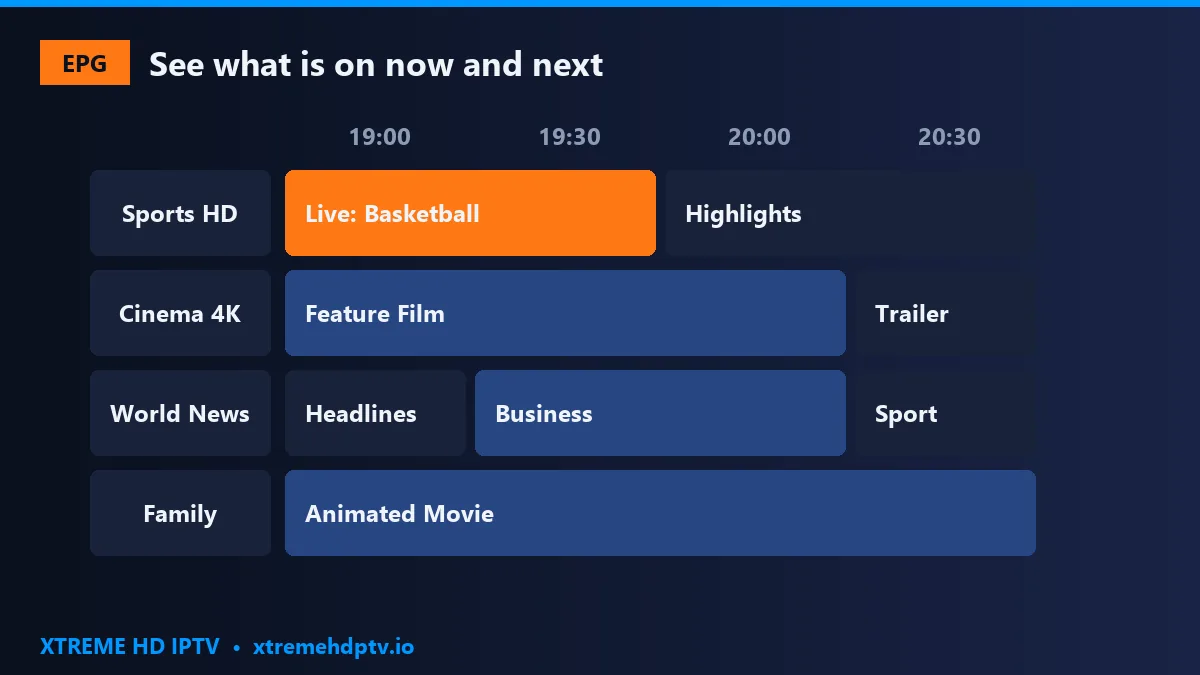
EPG stands for Electronic Program Guide. It is the on-screen TV schedule inside your IPTV player. The Xtreme HD IPTV guide collects data from hundreds of sources and shows listings in real time. With it you can:
- See what is playing now and next on each channel.
- Browse the schedule for the coming hours and days.
- Read a short summary of each program.
- Set reminders for matches and shows.
- Search for a team, a film or a series by name.
What Is Catch-Up TV?
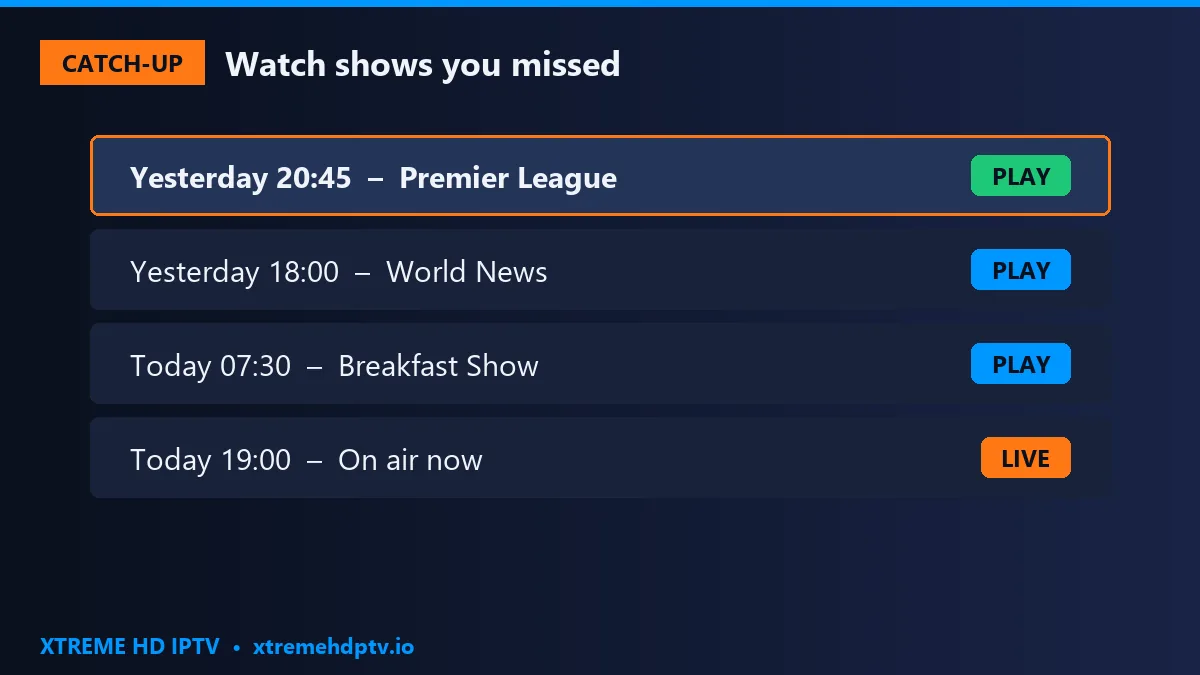
Catch-Up TV (also called replay or timeshift) lets you go back in time and watch programs that have already aired. Missed the first half of a game or last night’s news? Open the guide, move back to the program and press play.
Catch-Up is available on selected channels. In most players they are marked with a small clock or replay icon. How far back you can go depends on the channel, usually between one and seven days.
Loading the Xtreme HD IPTV TV Guide
The simplest way to get a complete guide is to sign in with Xtream Codes. The EPG then loads together with your channels. If you use an M3U link, you may need to add the EPG address from your welcome message. Read M3U vs Xtream Codes to understand why.
IPTV Smarters Pro
- Sign in with your Xtream Codes details.
- Choose Install EPG on the home screen, or go to Settings › EPG.
- Wait for the download, then open Live TV › TV Guide.
TiviMate
- Add your Xtreme HD IPTV playlist with Xtream Codes.
- The guide source is added automatically.
- If the grid is empty, open Settings › EPG and select Update EPG.
Xtreme HD IPTV app and Smart TV players
In our own Android app and in MAC-address players such as IBO Player, the guide arrives with your playlist. If it doesn’t show straight away, close the app, reopen it and wait a few minutes. See the best apps for Xtreme HD IPTV on Smart TV for details.
Using Catch-Up TV Step by Step
- Open the TV Guide.
- Pick a channel with the clock or replay icon.
- Press the left arrow on your remote to move back in time.
- Select the program you missed and press OK or Play.
In TiviMate, you can also open a channel, press left and choose a past program from the list. In IPTV Smarters, select Catch Up from the main menu.
Fixing the Time Zone
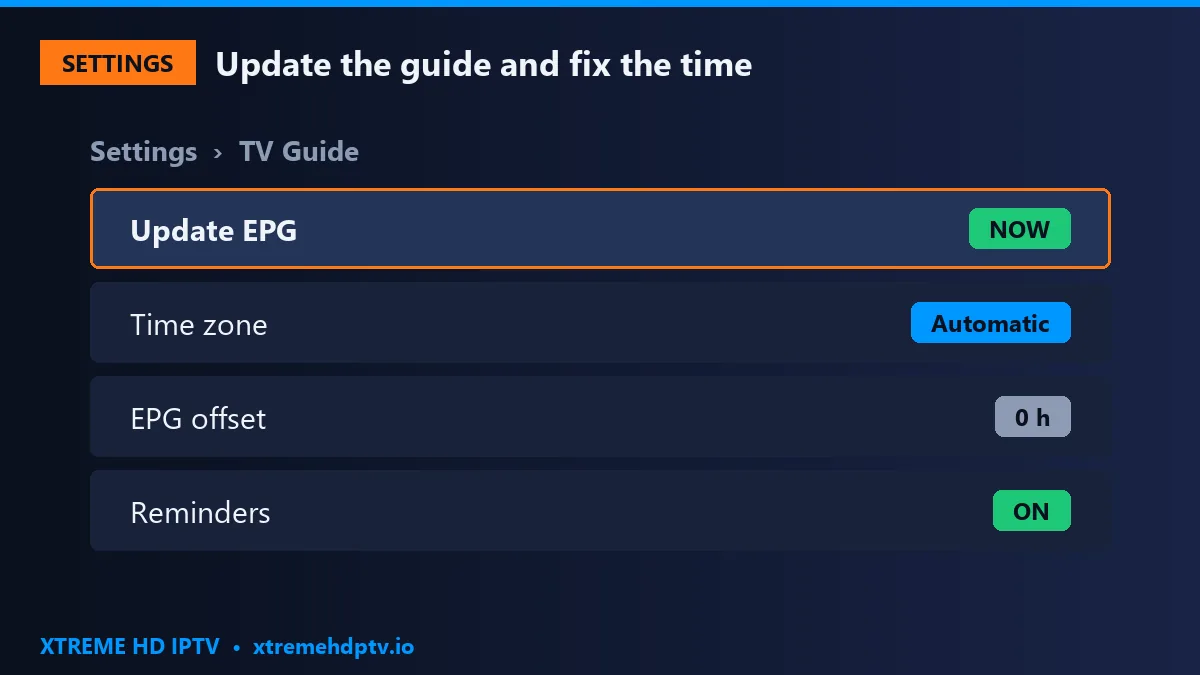
If the guide is one or two hours off (for example, the news appears too early), the time zone isn’t set correctly. In the EPG settings, choose Automatic or select your local zone. Many players also offer an EPG offset or time shift to move the whole guide forward or back. Also check that your device shows the correct date and time.
Recordings and Reminders
Some players go a step further. TiviMate Premium can record programs to your device or a USB drive, so you keep them as long as you like. Almost every player supports reminders: open a program in the guide, choose Remind me, and you will get a message before it starts. It is the easiest way to never miss a big Xtreme HD IPTV sports event.
EPG on Firestick vs Smart TV
On Firestick and Android boxes, TiviMate offers one of the best guides available, with a large grid and fast scrolling. On Samsung and LG televisions, the guide depends on the player: IBO Player has a clear grid view, while lighter apps like Smart IPTV show a simpler now-and-next list. If the guide matters a lot to you, a Firestick with TiviMate gives the richest experience. Here is how to install Xtreme HD IPTV on Firestick.
Tips for a Better Guide
- Build a favourites group with your main channels so the guide is shorter and quicker.
- Update the EPG weekly to keep listings fresh.
- Use search to find a team or show in seconds.
- Keep a good connection. Catch-up streams need the same speed as live TV. See how much speed you need.
Common Problems and Solutions
The guide is empty: update the EPG in the settings and wait a few minutes. With M3U, make sure the EPG link is added.
Times are wrong: check the time zone, the EPG offset and your device’s clock.
Some channels show no information: a few channels don’t publish schedule data. This is normal and doesn’t affect the picture.
Catch-up won’t play: make sure the channel has the replay icon. If it freezes, follow our guide on how to fix IPTV buffering.
Frequently Asked Questions
Is the TV guide included with Xtreme HD IPTV?
Yes. The EPG is included with every Xtreme HD IPTV plan at no extra cost.
How many days back can I watch with Catch-Up?
It depends on the channel, usually one to seven days.
Does every channel have Catch-Up?
No, only selected channels. Look for the clock or replay icon next to the name.
Which player has the best guide?
TiviMate on Firestick and Android, and IBO Player on Samsung and LG.
Looking for more help? Browse all our Xtreme HD IPTV setup guides and our IPTV tips and news.
Conclusion
The EPG and Catch-Up TV make Xtreme HD IPTV feel like a premium TV service: you always know what is on, and you can replay what you missed. Sign in with Xtream Codes, update the guide, set your time zone and you are ready. If anything doesn’t look right, our 24/7 support team is here on our contact page. Not a customer yet? See all Xtreme HD IPTV plans.
Need help with your IPTV?
Our team is available 24/7 to help you install and use your subscription on any device.
CONTACT US ON WHATSAPP