

Nothing is more frustrating than a picture that freezes right before a goal. Xtreme HD IPTV uses Anti-Freeze technology on its servers, but the stream still has to travel through your home network and your device, and that is where most buffering starts. The good news is that almost every buffering problem can be fixed at home in a few minutes. Below you will find the causes, nine proven solutions, and a quick checklist to keep your streams smooth.
What Causes IPTV Buffering?
When you watch a channel, your device keeps a small “reserve” of video a few seconds ahead of what you see. If data arrives more slowly than the video plays, the reserve runs out and the player pauses to refill it. That pause is buffering. The usual reasons are:
- Slow or unstable internet, especially between 7 pm and 11 pm.
- A weak Wi-Fi signal because of distance, walls or interference.
- Too many devices sharing the same connection.
- A tired device with little free memory or storage.
- A player app that doesn’t suit your device.
Work through the fixes below in order and test after each one. Most Xtreme HD IPTV customers are back to smooth viewing after the first two or three.
Fix 1: Power-Cycle Your Router and Device
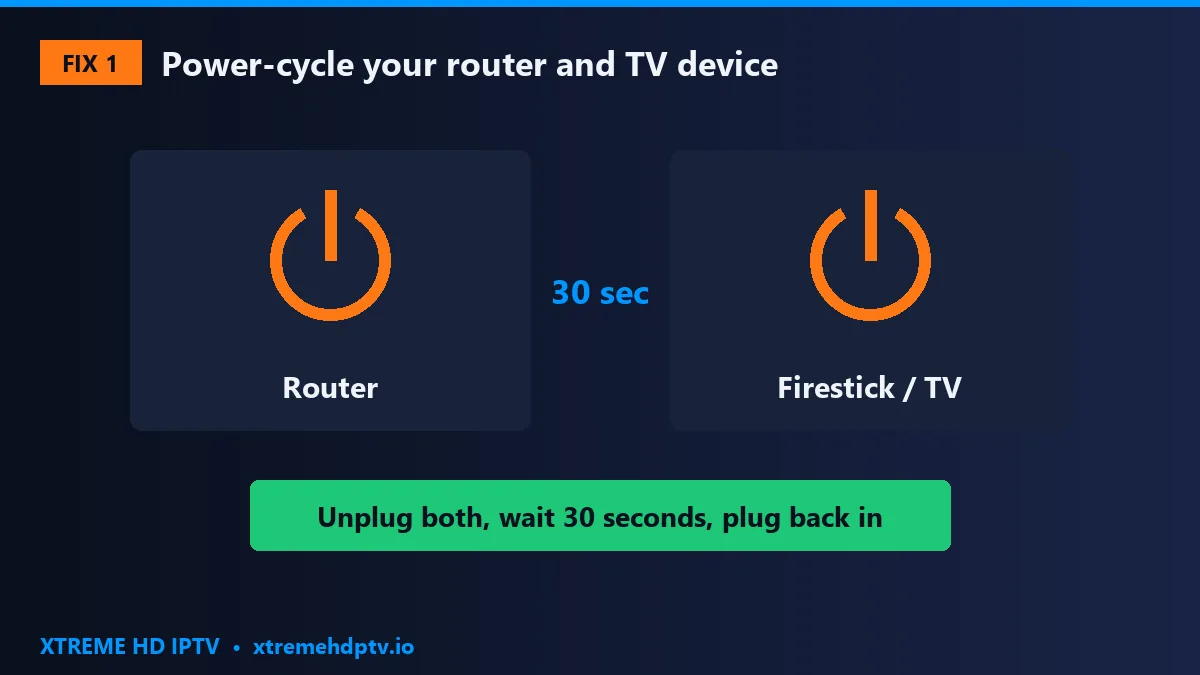
It sounds too simple, but it works more often than anything else. Unplug your router and your TV device (Firestick, Android box or Smart TV), wait 30 seconds, then plug them back in. This clears memory, removes small errors and gives you a fresh connection to your internet provider.
Fix 2: Switch from Wi-Fi to a Cable
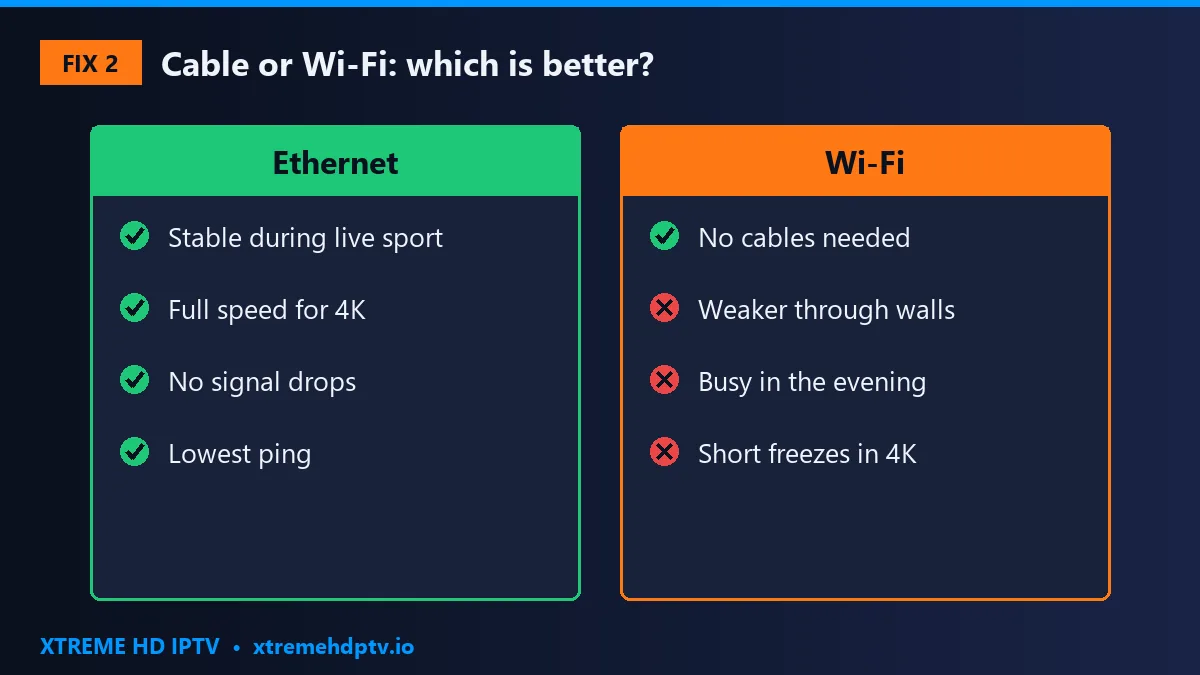
A network cable gives you the full speed of your connection with no interference. If your TV or box has an Ethernet port, use it. Firestick owners can add a low-cost Ethernet adapter. If a cable is impossible, connect to your router’s 5 GHz network instead of 2.4 GHz, and keep the router in an open place, not inside a cabinet.
Fix 3: Measure Your Real Speed
Run a test with Fast.com on the device you actually watch with, not on your phone next to the router. You need roughly 10 Mbps for HD and 25 Mbps for 4K. Repeat the test in the evening, when networks are busiest. For a full breakdown, read what internet speed you need for Xtreme HD IPTV.
Fix 4: Pause Other Heavy Activity
Console game downloads, cloud backups, video calls and other people streaming all compete for the same bandwidth. Pause them during live events or schedule updates for the night. If your router has a QoS setting, give your TV device top priority.
Fix 5: Clear the Player Cache
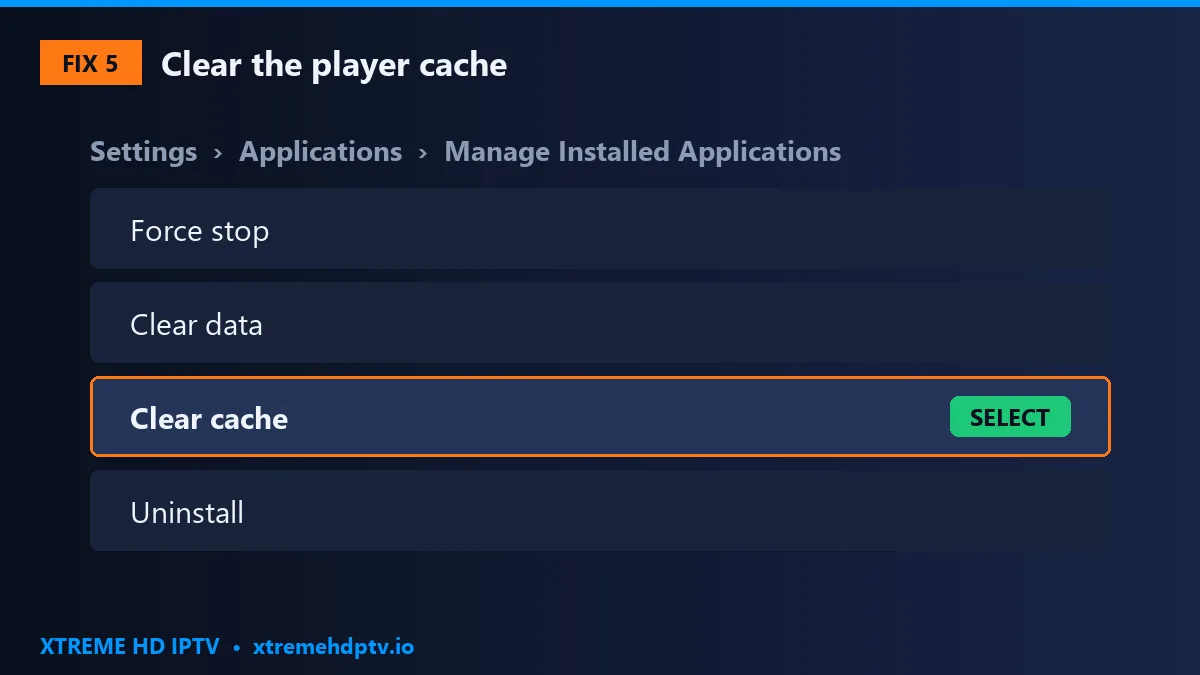
IPTV apps store temporary files that slowly fill up. On Firestick and Android, open Settings › Applications › Manage Installed Applications, select your player and choose Clear cache. Avoid “Clear data”, which removes your login.
Fix 6: Free Up Storage
A device that is almost full becomes slow and handles live video badly. Remove apps you no longer use and delete old installation files from Downloader. Aim for at least 1 GB of free space on a Firestick or Android box.
Fix 7: Try a Different Player
Each player handles streams differently. If one keeps stuttering, sign in to another with the same Xtreme HD IPTV details: TiviMate or IPTV Smarters on Firestick and Android, or IBO Player on Samsung and LG. See the best apps for Xtreme HD IPTV on Smart TV. In some players you can also switch the video decoder between hardware and software, or increase the buffer size, which often helps on slower lines.
Fix 8: Choose HD Instead of 4K for a While
If your connection is slow only at certain times, switch to the HD or FHD version of the channel until the network calms down. Xtreme HD IPTV offers many channels in several qualities so you can keep watching without interruption.
Fix 9: Contact Xtreme HD IPTV Support
If every channel works except one, the issue may be on that specific stream. Send our 24/7 support team the channel name, the time, your device and your internet speed through our contact page or WhatsApp. These details help us check and solve it quickly.
Buffering Checklist
| What you notice | Try this first |
|---|---|
| Every channel freezes | Restart router and device, test speed |
| Freezes mostly in the evening | Use a cable, pause downloads, pick HD |
| The app is slow to open | Clear cache, free up storage |
| Only one channel freezes | Try its HD version, contact support |
| Problems in one app only | Sign in to another player |
How to Prevent Buffering in the Future
- Restart your router and TV device once a week.
- Keep at least 1 GB of free storage on your device.
- Use a cable for the TV where you watch live sports.
- Update your player app and device software regularly.
- Choose a device that matches your TV: a 4K model for 4K channels.
Frequently Asked Questions
Why does Xtreme HD IPTV buffer only at night?
In the evening, many households in your area are online at the same time, so your provider’s network is busier. A cable connection and pausing other downloads help the most.
Will a VPN stop buffering?
It can help if your internet provider slows down video traffic. But a slow VPN server can also make things worse, so test with and without it.
Is 4K more likely to buffer?
Yes. 4K needs more than twice the speed of HD. With less than 25 Mbps, choose the HD version of the channel.
Can an old Firestick cause freezing?
Yes. Older models have less memory. A Fire TV Stick 4K Max handles Xtreme HD IPTV much better. Follow our guide on how to install Xtreme HD IPTV on Firestick.
Looking for more help? Browse all our Xtreme HD IPTV setup guides and our IPTV tips and news.
Conclusion
Most buffering is solved by restarting your equipment, using a cable and checking your speed. If you have tried all nine fixes and still see freezing, the Xtreme HD IPTV support team is available 24/7 to help. New to the service? Explore our plans and prices, with options from 1 to 5 devices.
Need help with your IPTV?
Our team is available 24/7 to help you install and use your subscription on any device.
CONTACT US ON WHATSAPP