
Your internet connection decides how good Xtreme HD IPTV looks on your screen. With enough speed, 4K sports are sharp and smooth; without it, the picture drops in quality or freezes. Many people pay for a fast internet plan and still have problems because they test the wrong way or share the connection with too many devices. This guide explains exactly how much speed you need, how to measure it properly, and what to do if your connection is too slow.
How Much Speed Does Xtreme HD IPTV Need?
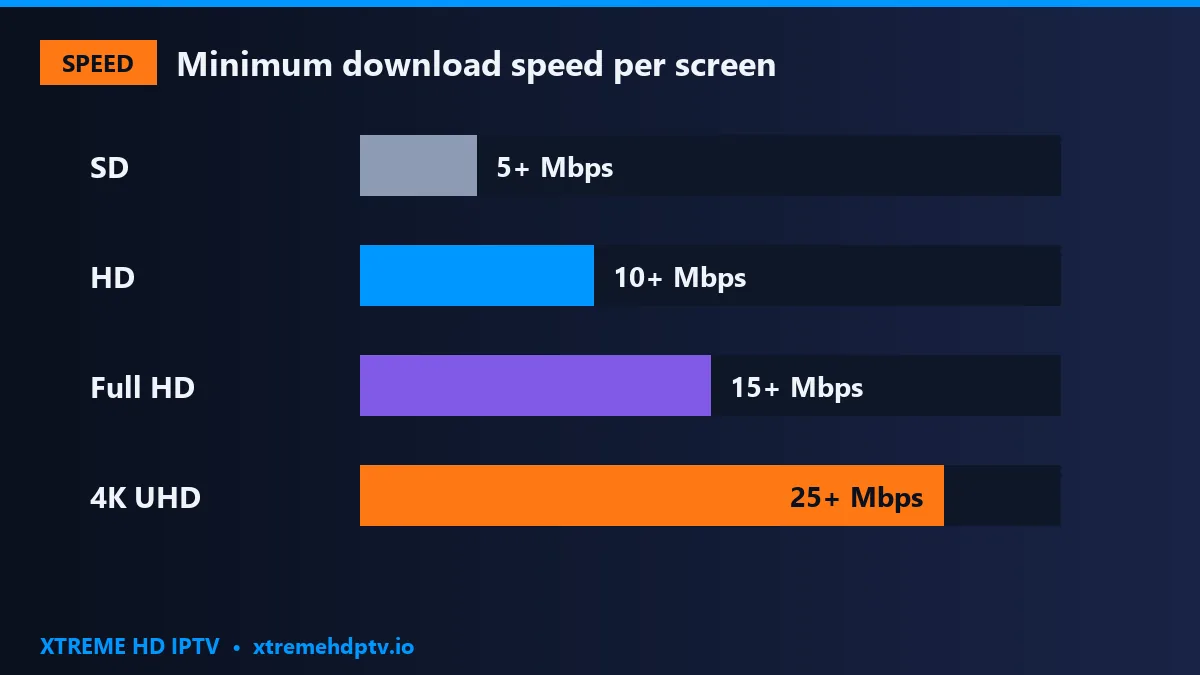
These are the minimum download speeds we recommend for one screen:
| Picture quality | Resolution | Minimum speed | Typical use |
|---|---|---|---|
| SD | 480p | 5 Mbps | Phones, slow lines |
| HD | 720p | 10 Mbps | Tablets, small TVs |
| Full HD | 1080p | 15 Mbps | Most living-room TVs |
| 4K UHD | 2160p | 25 Mbps | 4K TVs, live sport |
Think of these as the floor, not the target. Having a little extra speed gives you a safety margin for busy evenings and big live events.
Why 4K Needs So Much More
A 4K picture contains four times as many pixels as Full HD. Even with efficient compression, each second of 4K video carries far more data. Fast-moving sport is the hardest to compress, which is why Xtreme HD IPTV recommends at least 25 Mbps for 4K channels.
Stability matters as much as speed. A line that reaches 60 Mbps but drops for a second every few minutes will freeze more than a steady 30 Mbps line. That is why a cable connection often beats a faster Wi-Fi connection.
How to Test Your Speed the Right Way
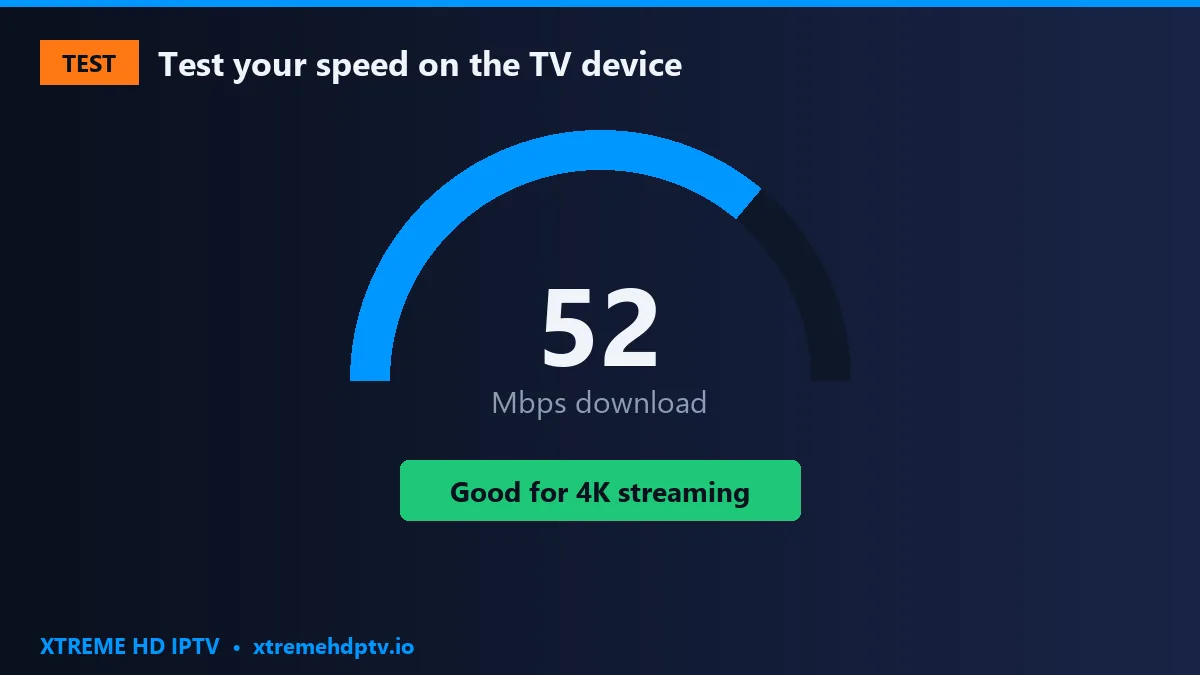
A common mistake is testing on a phone standing next to the router, then watching on a TV two rooms away. For a result you can trust:
- Test on the TV device itself. On a Firestick, install a speed test app from the Amazon Appstore or open Fast.com in the Silk browser.
- Test at peak time, between 8 and 10 pm.
- Pause other downloads while testing.
- Run the test three times and keep the lowest number.
Ping and Jitter: The Hidden Numbers
Your speed test shows two more values. Ping is how long data takes to reach a server and come back. Under 50 ms is great for Xtreme HD IPTV, and under 100 ms is fine. Jitter shows how much the ping changes. High jitter means an unstable line, and it often causes short freezes even when the download speed looks good. A cable connection and a router restart usually bring both numbers down.
Several Screens at Home? Add Them Up
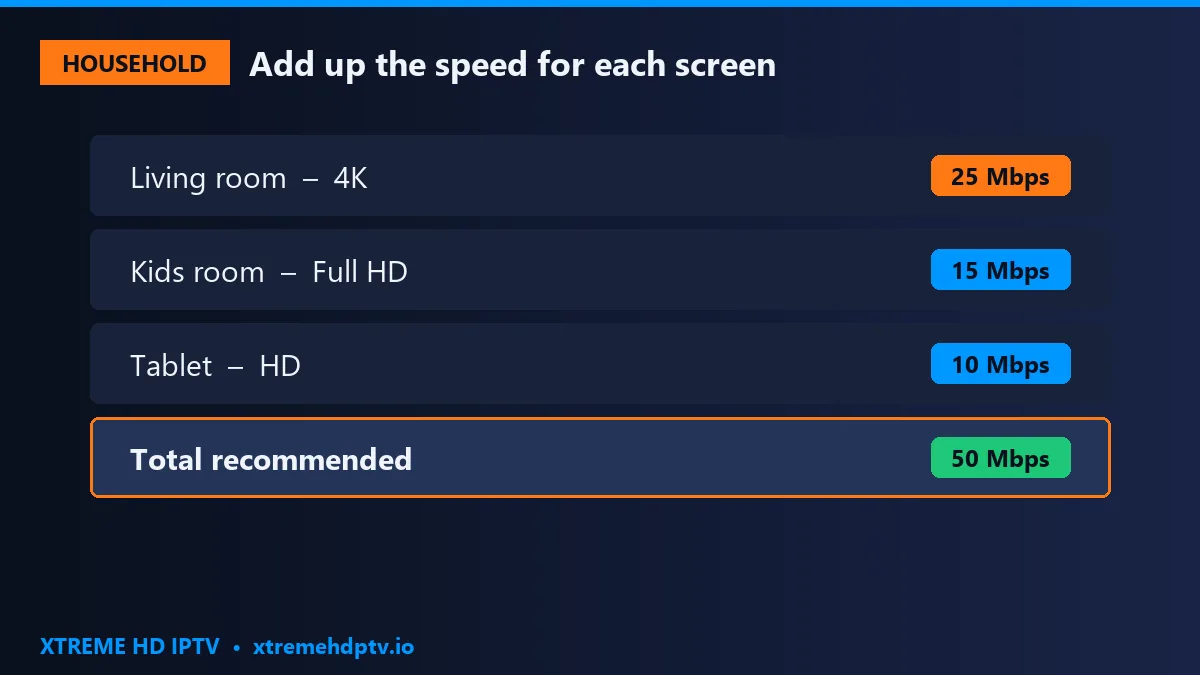
If different people watch at the same time, add the speed for each screen. A typical family example:
- Living-room TV in 4K: 25 Mbps
- Kids’ room TV in Full HD: 15 Mbps
- Tablet in HD: 10 Mbps
- Recommended total: about 50 Mbps
Also count video calls, online gaming and downloads that happen at the same time. Xtreme HD IPTV plans cover from 1 to 5 devices; compare them on our pricing page.
Recommended Speed by Device
| Device | Best quality | Recommended speed |
|---|---|---|
| Fire TV Stick 4K / 4K Max | 4K | 25 Mbps+ |
| Fire TV Stick / Lite | Full HD | 15 Mbps |
| Android TV box (4K) | 4K | 25 Mbps+ |
| Samsung / LG 4K Smart TV | 4K | 25 Mbps+ |
| Phone or tablet | HD | 10 Mbps |
Which Internet Type Works Best?
- Fibre: the best option. Fast, stable and low ping, ideal for 4K.
- Cable: usually fast enough, though it can slow down in the evening.
- DSL: fine for HD, often too slow for 4K.
- 5G home internet: can handle 4K with good coverage; 4G is better suited to HD.
- Satellite: not recommended for live IPTV because of high ping.
Wikipedia’s overview of broadband explains the main connection types if you want to compare your options.
How to Make Your Connection Faster
- Plug in a network cable wherever possible. It is the single biggest improvement.
- Use 5 GHz Wi-Fi when a cable isn’t possible.
- Move the router higher and closer to the TV, or add a mesh system in larger homes.
- Restart the router once a week.
- Replace an old router that is more than five or six years old.
- Limit other downloads during live events.
Still seeing freezes after all this? Follow our step-by-step guide on how to fix Xtreme HD IPTV buffering.
Does Your Device Limit the Speed?
Sometimes the internet line is fast but the device is the bottleneck. Older Firesticks and many Smart TVs have Wi-Fi chips that top out well below your plan’s speed, and some TV Ethernet ports are limited to 100 Mbps. That is still plenty for one 4K stream, but a weak Wi-Fi chip may only deliver 15 to 20 Mbps in another room. If your phone shows 100 Mbps and your TV shows 18 Mbps, the TV’s connection is the problem, not your internet plan. A cable, an Ethernet adapter for Firestick or a newer 4K Max model usually closes the gap.
Frequently Asked Questions
Is 25 Mbps enough for Xtreme HD IPTV in 4K?
Yes, for one 4K screen on a stable connection. Add speed for every extra screen.
Can I watch in 4K over Wi-Fi?
Yes, if the signal is strong and you use 5 GHz. A cable is still more reliable for live sport.
Does upload speed matter?
Not really. Download speed is what counts for watching. Upload is used for sending data, such as video calls.
Do I need a 4K device as well?
Yes. To watch 4K you need a 4K TV and a 4K-capable device, such as a Fire TV Stick 4K or a recent Samsung or LG Smart TV. See the best apps for Xtreme HD IPTV on Smart TV.
Looking for more help? Browse all our Xtreme HD IPTV setup guides and our IPTV tips and news.
Conclusion
For the best Xtreme HD IPTV experience, plan for at least 25 Mbps per 4K screen, test on the device you watch with, and use a cable whenever you can. With a good connection, you get sharp 4K channels and smooth live sport without interruptions. Need help checking your setup? Our 24/7 team is one message away on our contact page.
Need help with your IPTV?
Our team is available 24/7 to help you install and use your subscription on any device.
CONTACT US ON WHATSAPP