
Working late on game night? Want to keep a fight to watch again? With Xtreme HD IPTV you have two ways to watch things later: recording and catch-up. They sound alike but work very differently. This guide explains both, shows how to record in the most popular apps, and helps you decide which one you actually need.
Recording vs Catch-Up: What’s the Difference?
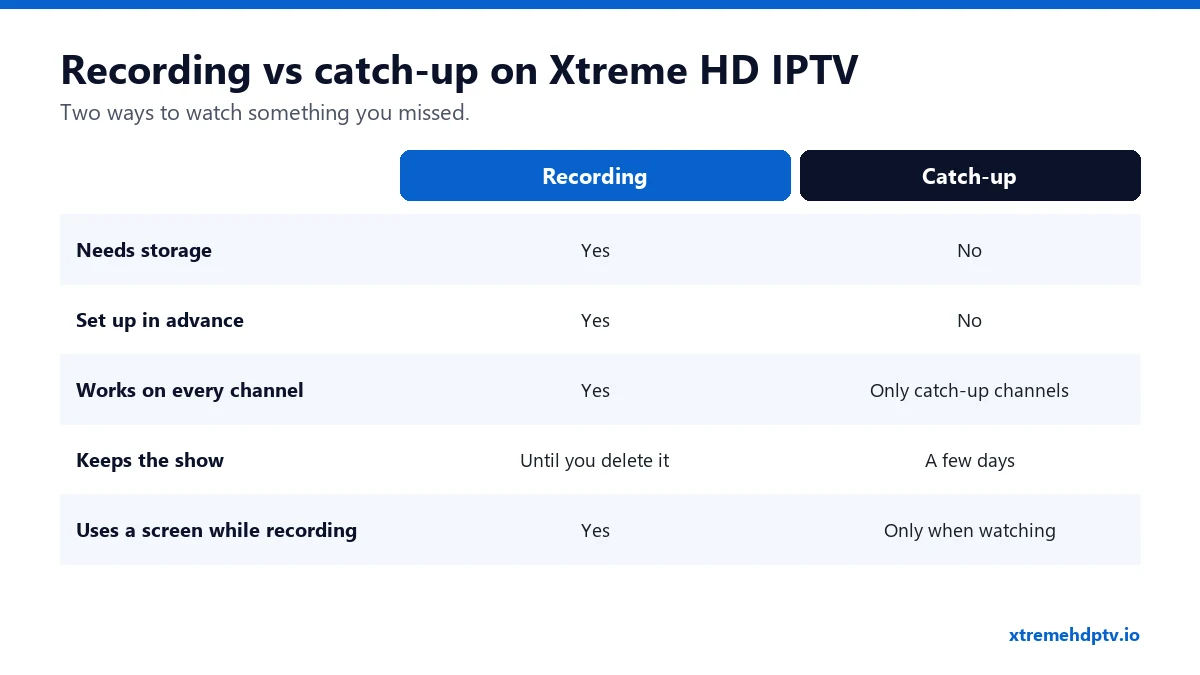
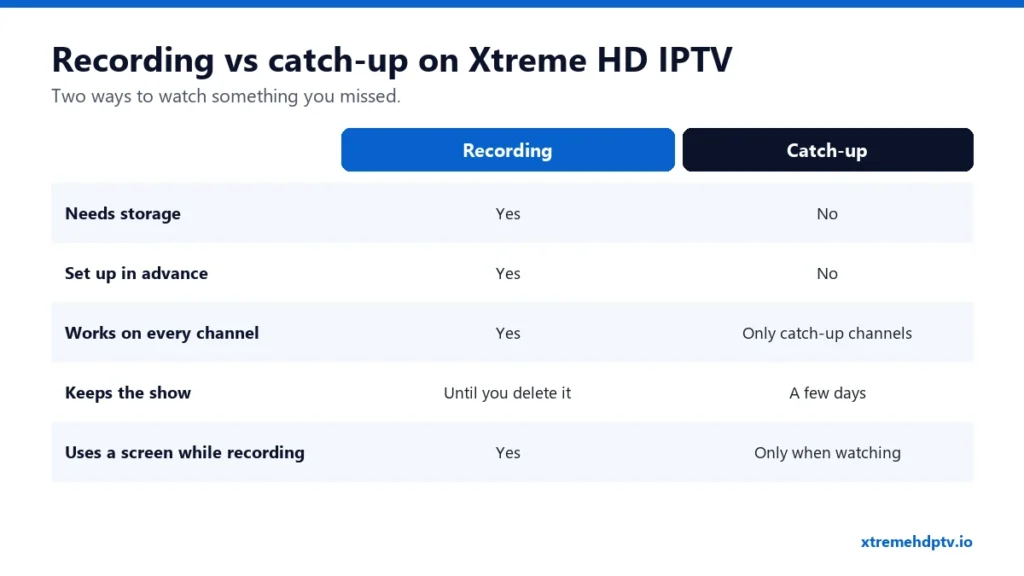
- Catch-up keeps recent programs on the server for a few days. You open the TV guide, go back in time, and play the show. Nothing to set up, no storage needed. It only works on channels that offer catch-up and in apps that support it.
- Recording saves the stream to your own device or USB drive while it airs. It works on any channel, and the file stays until you delete it. You need storage space and an app that can record.
For most people, catch-up covers 80% of needs. Record only when the channel has no catch-up or you want to keep something. Catch-up is explained in how to use EPG and catch-up.
Which Apps Can Record?
- TiviMate Premium (Firestick, Android TV): the best option, with scheduled recordings from the TV guide.
- IPTV Smarters Pro (Android): can record live channels on many devices.
- Smart TV apps (Samsung, LG): usually can’t record. Use catch-up instead.
- iPhone and Apple TV: recording is limited. Catch-up is the practical choice.
How to Record With TiviMate
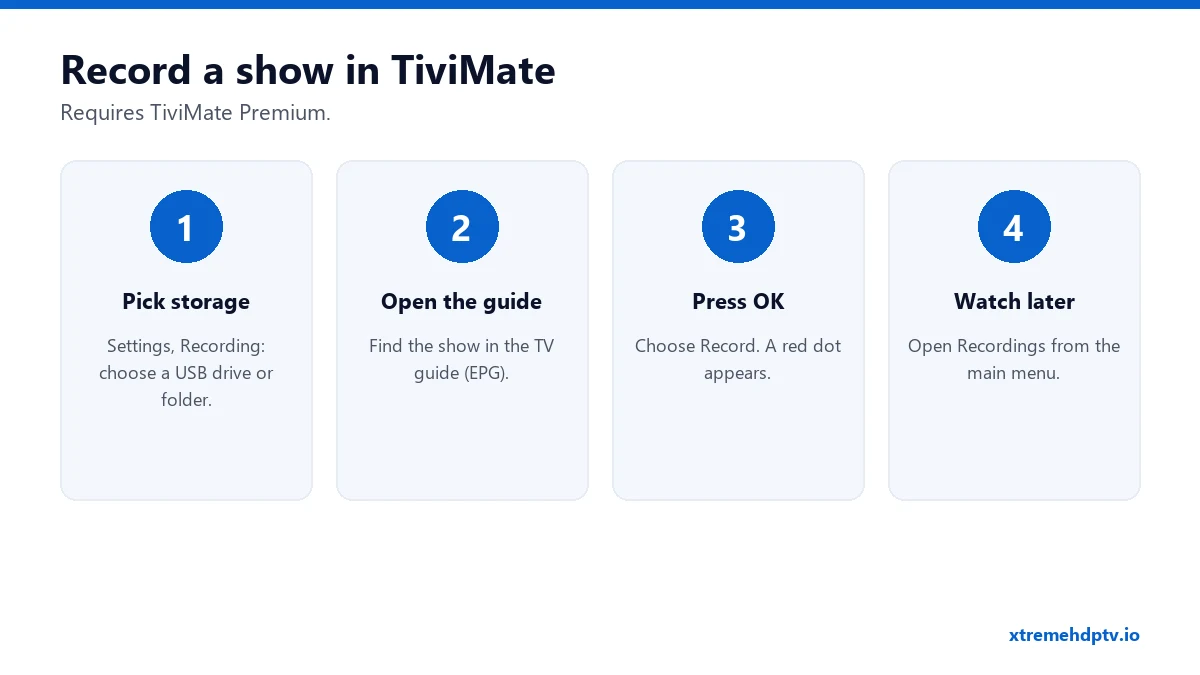
- Choose where to save. Go to Settings › Recording and pick a folder. On a Firestick, internal storage is small, so a USB drive through an OTG adapter is much better.
- Find the show. Open the TV guide and move to the program you want.
- Press OK and choose Record. A red dot appears on the program in the guide.
- Watch it later from Recordings in the main menu.
You can also record what’s playing now: press OK during playback and choose Record. TiviMate setup is covered in our TiviMate guide.
How to Record With IPTV Smarters Pro
- Start the live channel you want.
- Open the player options and tap the Record button if your version shows it.
- Tap again to stop. Find the file under Recordings in the app’s menu.
Features vary by device and version. If you don’t see a record button, your version doesn’t support it there. Use catch-up or TiviMate instead.
How Much Storage Do You Need?
- HD: about 1.5 to 3 GB per hour.
- 4K: 7 GB per hour or more.
A 3-hour football game in HD can take 6 to 9 GB. A Firestick has only a few GB free, so a 64 GB or larger USB drive is the way to go if you record often.
Recording and Your Screen Limit
Here’s a detail people miss: a recording uses a connection while it records. If you’re on a 1-device plan and you record one channel while watching another, the second stream will be refused. Either record only what you’re watching, or use a plan with more devices. See the plans guide.
Troubleshooting Recordings
The recording is empty or very short
Usually the storage is full or the device went to sleep. Check free space and turn off sleep mode during recordings.
The recording stutters on playback
The stream was buffering while recording. Fix the connection first with our buffering guide. A wired connection helps a lot.
The record button is missing
Your app or version doesn’t support recording on that device. TiviMate Premium is the most reliable choice.
FAQ
Can I record PPV events?
If the event is on a channel in your list, you can record it the same way as any channel, within your app’s limits.
Can I record two channels at once?
Only if your plan has enough screens, since each recording uses one.
Where are recordings saved?
On your own device or USB drive, in the folder you choose. They aren’t stored on our servers.
Need help with your IPTV?
Our team is available 24/7 to help you install and use your subscription on any device.
CONTACT US ON WHATSAPP