
You’ve installed the app, entered your login, and now there are 20,000+ channels on the screen. That’s where a lot of new users freeze. This guide is about what comes after setup: how to actually use Xtreme HD IPTV day to day without scrolling forever. If you haven’t set it up yet, start with the setup guide for your device.
The Four Sections You’ll Use
Every player app (TiviMate, IPTV Smarters, IBO Player and the others) organizes Xtreme HD IPTV the same basic way:
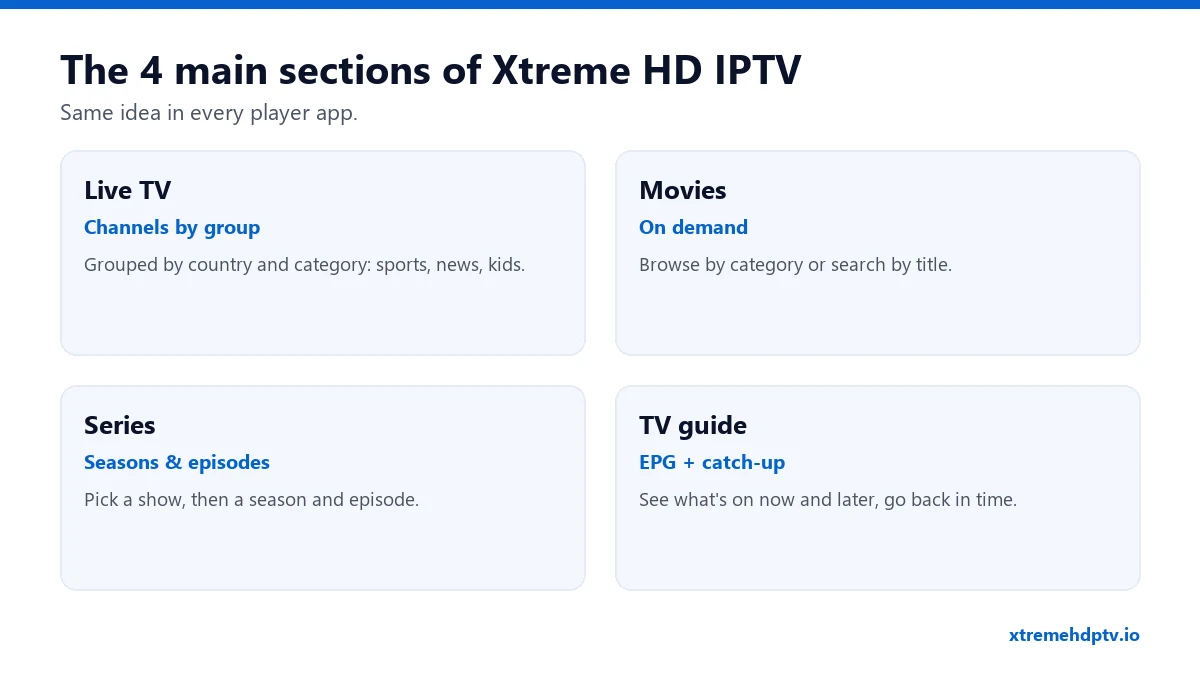
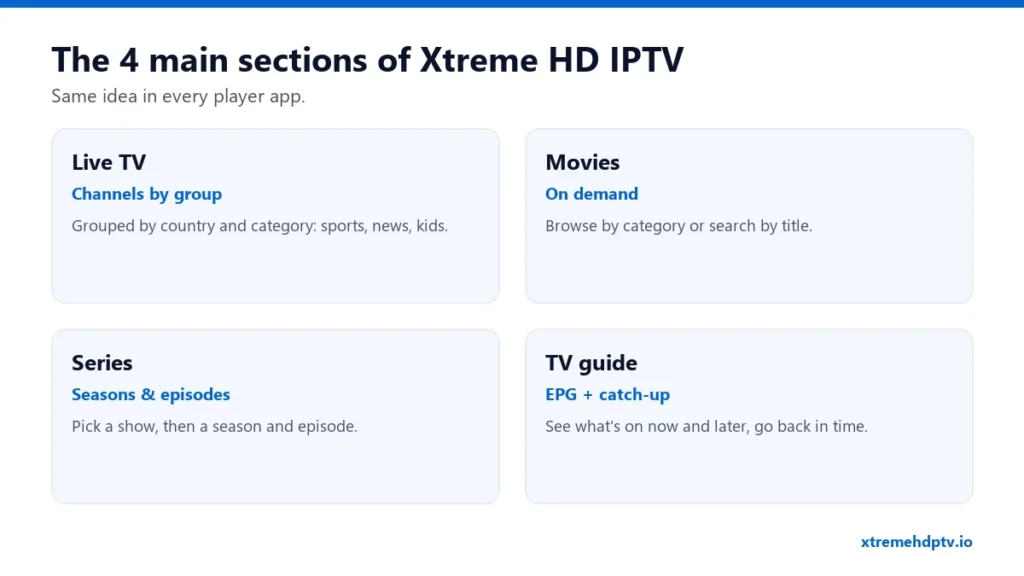
- Live TV: channels sorted into groups, usually by country and then by type (sports, news, kids, entertainment).
- Movies: the on-demand film library, by category.
- Series: TV shows. Pick a show, then a season, then an episode.
- TV guide (EPG): a grid showing what’s on now and later. On channels with catch-up you can also go back in time.
Finding Channels Fast
Use groups, not scrolling
Open Live TV and pick a group first, like “USA | Sports”. That turns 20,000 channels into a few dozen.
Use search
Every app has a search option (a magnifying glass, or a “Search” item in the menu). Type a few letters of the channel name. It’s the fastest way to find one specific channel.
Hide what you’ll never watch
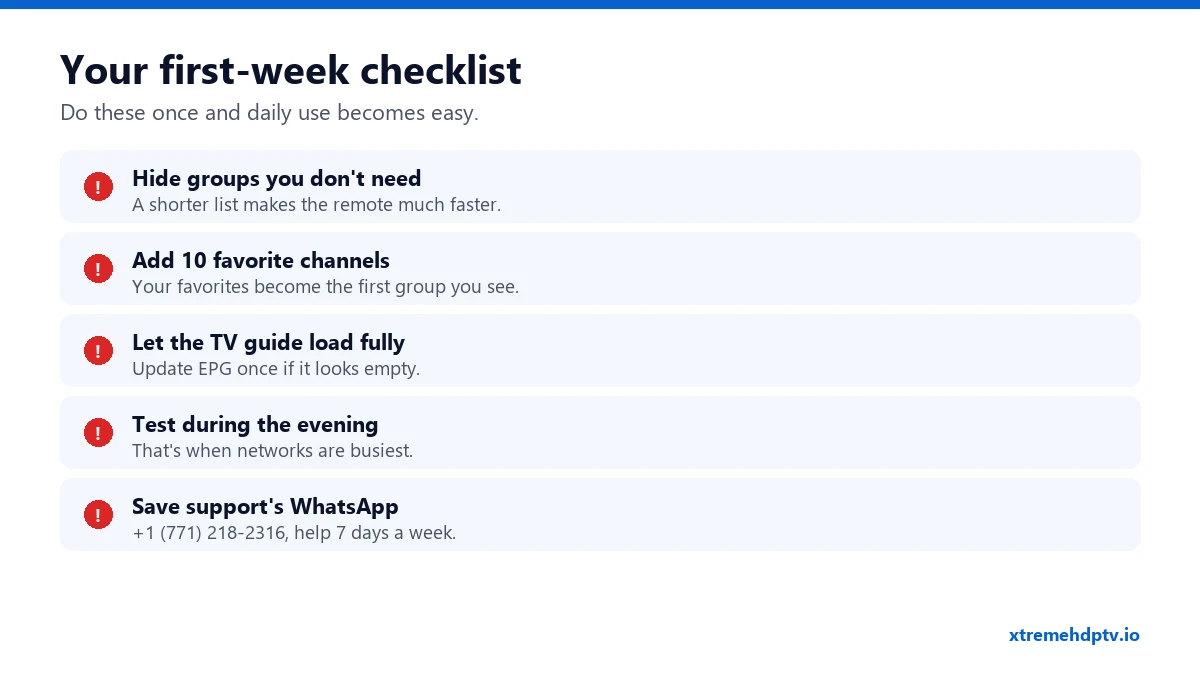
Most apps let you hide whole groups. In TiviMate it’s under Settings › Playlists › Manage groups. In Smarters, look for the lock or hide option on categories. Hiding countries you don’t need makes everything faster.
Build your favorites
Long-press OK on a channel (or tap the star or heart) and add it to favorites. Ten favorites cover most people’s daily viewing.
Using the TV Guide
The TV guide is where IPTV starts to feel like cable. Move up and down for channels, left and right for time. Press OK on a show to watch it now, or to see details. On catch-up channels, scroll left into the past and play something that already aired. The full walkthrough is in how to use EPG and catch-up.
If the guide looks empty on day one, open your app’s settings and choose Update EPG. It can take a few minutes for 20,000+ channels.
Movies and Series
- Search by title instead of browsing. The library has 40,000+ titles.
- Check the quality tag (HD, FHD, 4K) if a title appears more than once. Pick 4K only if your connection gives 20 Mbps or more.
- Resume where you stopped. Most apps remember your position in a movie or episode.
- Subtitles and audio: open the player options during playback. More in our subtitles guide.
Live Sports and PPV
Sports channels are usually in their own groups by country. PPV events often appear in a dedicated PPV or events group shortly before they start. A few tips for game day:
- Open the channel 10 minutes early so you’re not hunting during kickoff.
- If a channel stutters, check whether the same event is on another channel in the group.
- Use a wired connection for big events. See buffering fixes.
Your First-Week Checklist
Beginner Mistakes to Avoid
- Watching on two TVs with a 1-device plan. One will stop. Your plan sets how many screens can play together. See the plans guide.
- Sharing the login outside your home. Your own TV will start getting “max connections” errors.
- Judging the service on bad Wi-Fi. Try a cable before deciding anything.
- Installing five different apps. Pick one player and learn it. Switching apps all the time is confusing.
FAQ
Why are some channels listed more than once?
They’re usually different quality versions (SD, HD, FHD, 4K) or backups. If one doesn’t work well, try the other version.
A channel isn’t working. What do I do?
Switch away and come back, or restart the app. If it still fails, send the channel name to support on WhatsApp.
Can I use it while traveling?
Yes, on any good internet connection. Your plan’s screen limit still applies.
Need help with your IPTV?
Our team is available 24/7 to help you install and use your subscription on any device.
CONTACT US ON WHATSAPP