
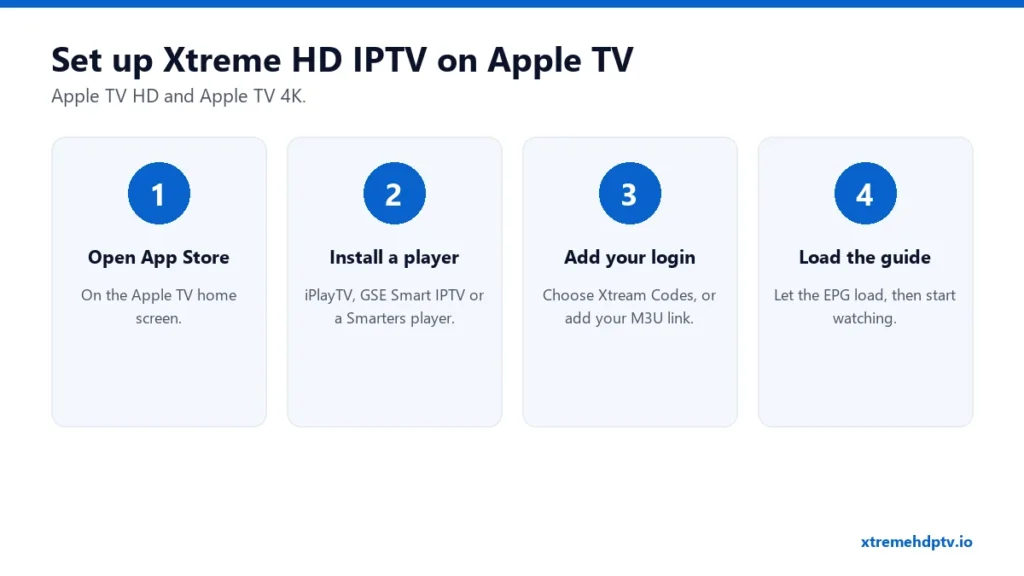
Apple TV is one of the nicest boxes to watch Xtreme HD IPTV on. It’s fast, the remote is simple, and 4K looks great. There’s no sideloading here: everything comes from the App Store. So the whole job comes down to picking the right player and entering your login once. Here’s how.
What You Need
- An Apple TV HD or Apple TV 4K with an up-to-date tvOS.
- An active Xtreme HD IPTV plan and your login. Not sure where it is? See the login guide.
- A wired or strong 5 GHz Wi-Fi connection, especially for 4K.
Which Player to Use on Apple TV
Three players are popular with Apple TV users:
- iPlayTV: built for the TV, with a proper grid guide that feels like cable. It’s a paid app, and worth it if Apple TV is your main screen.
- GSE Smart IPTV: free to start, with lots of settings. A bit busier to navigate with the Siri remote.
- Smarters player: the same family of apps many people already know from Firestick and phones.
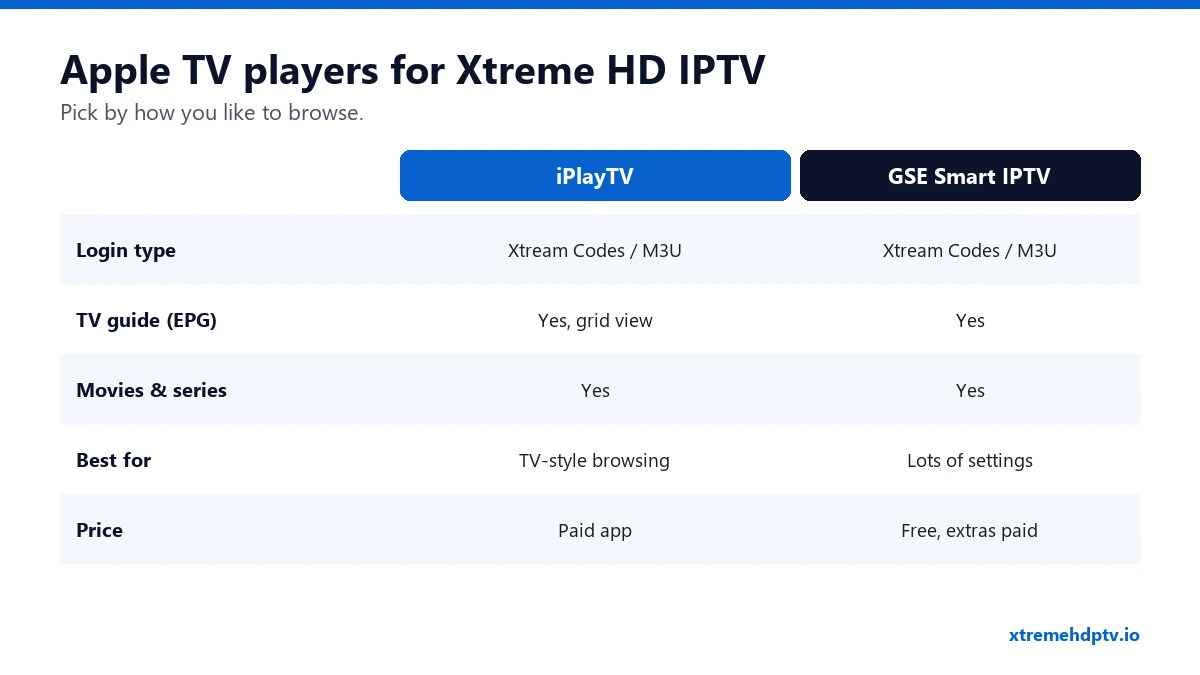
App names and prices on the App Store change from time to time. Pick one that supports Xtream Codes and has an EPG (TV guide). You’ll want both.
Step-by-Step Setup on Apple TV
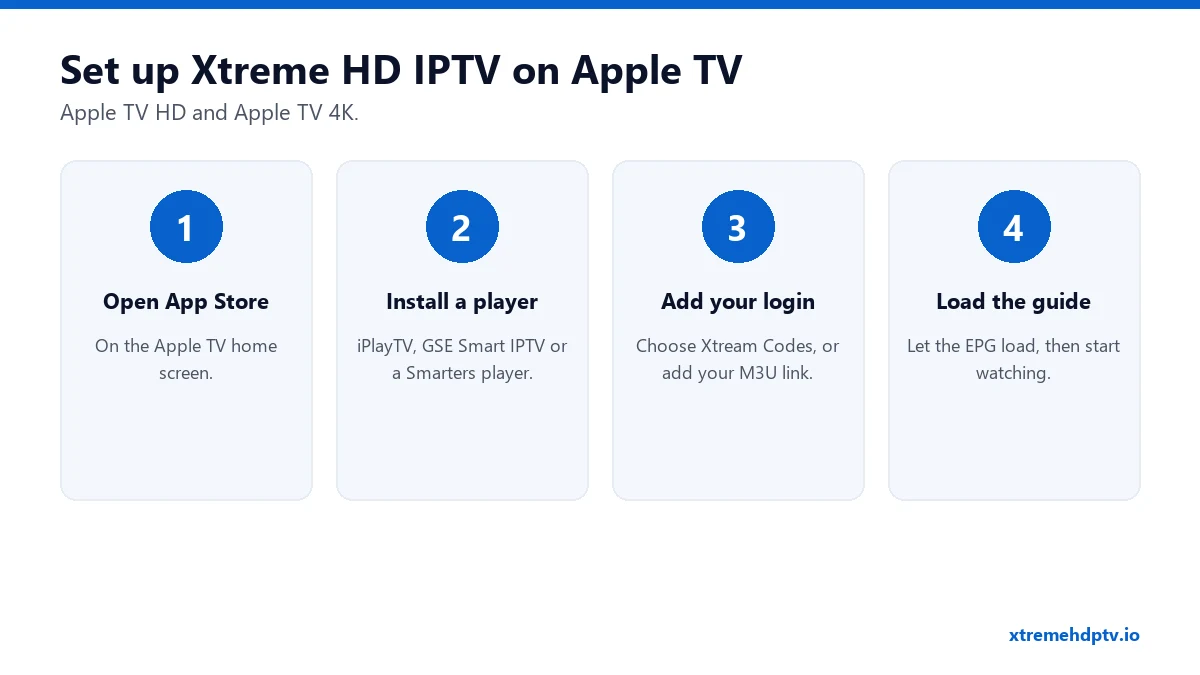
1. Install the player
Open the App Store on Apple TV, search for the player, and select Get.
2. Add your Xtreme HD IPTV login
Open the app and look for Add playlist, Add provider or Xtream Codes. Enter:
- Server URL (with
http://and the port number) - Username
- Password
Typing with the Siri remote is slow. You can use the Apple TV Remote on your iPhone (Control Center) to type with your phone’s keyboard instead. Some players also let you add the playlist from your phone or the app’s website.
3. Let the guide load
The first load of 20,000+ channels and the TV guide can take a minute or two. After that, it’s quick.
4. Tidy up your channel list
Hide channel groups you’ll never watch and add your favorites. A shorter list makes the Siri remote much nicer to use.
Settings for Smooth 4K on Apple TV
- Use Ethernet on Apple TV 4K if your model has the port. 4K needs 20 Mbps or more, steady. See internet speed for 4K.
- Turn on “Match Frame Rate” in Settings › Video and Audio › Match Content. Live sports look smoother when the TV matches the stream’s frame rate.
- Keep tvOS and the app updated. Many playback bugs disappear after an update.
Troubleshooting on Apple TV
The app says login failed
Check capital letters and the port number in the server URL. Retype the details using your iPhone keyboard. More in the login errors section.
Picture freezes during live sports
Restart the router and the Apple TV (Settings › System › Restart). Then try a cable. Our buffering guide has the full list.
The TV guide is empty
In the app’s settings, refresh or update the EPG and wait a few minutes. If you added an M3U link, you may need to add the EPG link separately (see the M3U guide).
FAQ
Can I use the same login on Apple TV and iPhone?
Yes. The number of screens playing at the same time depends on your plan.
Does Apple TV support catch-up?
Yes, in players that support it, and on channels that offer catch-up. See how to use EPG and catch-up.
Is Apple TV better than a Firestick for IPTV?
It’s faster and more polished, but costs more. A Firestick has more free player options. Both work very well with Xtreme HD IPTV.
Need help with your IPTV?
Our team is available 24/7 to help you install and use your subscription on any device.
CONTACT US ON WHATSAPP