
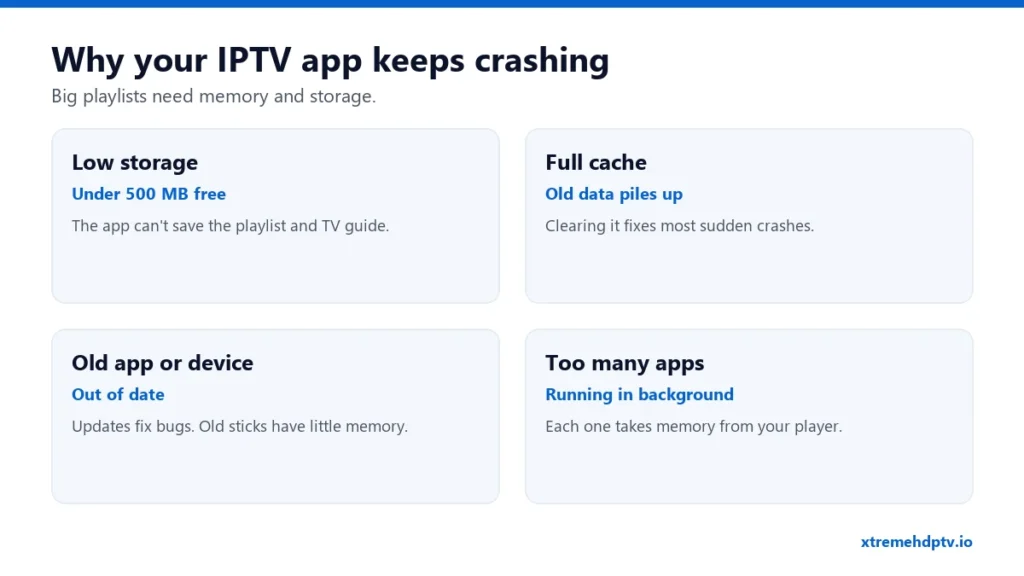
You open your player, the channel list starts to load, and the app shuts. Or it plays for twenty minutes and then drops back to the home screen. When the Xtreme HD IPTV app keeps crashing, the cause is almost always the device: not enough storage, a full cache, or an outdated app. A playlist with 20,000+ channels, 40,000+ movies and a full TV guide needs room to breathe. Here’s how to give it that room.
Why IPTV Apps Crash
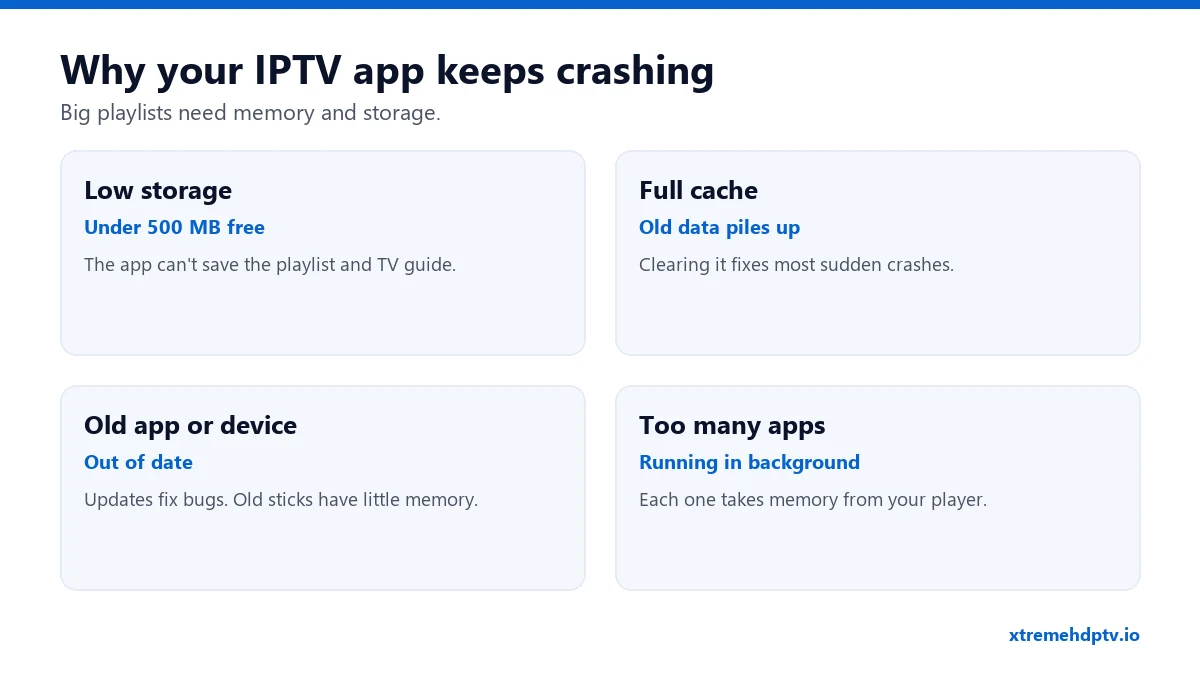
- Low storage. Firesticks come with little space. When free storage falls under about 500 MB, apps start closing on their own.
- A full cache. Every channel logo, guide entry and poster gets cached. Over weeks it piles up.
- An outdated app or system. Bugs get fixed in updates. Old versions crash more.
- Too many apps running. Every app in the background uses memory your player needs.
Fix It on Firestick and Fire TV
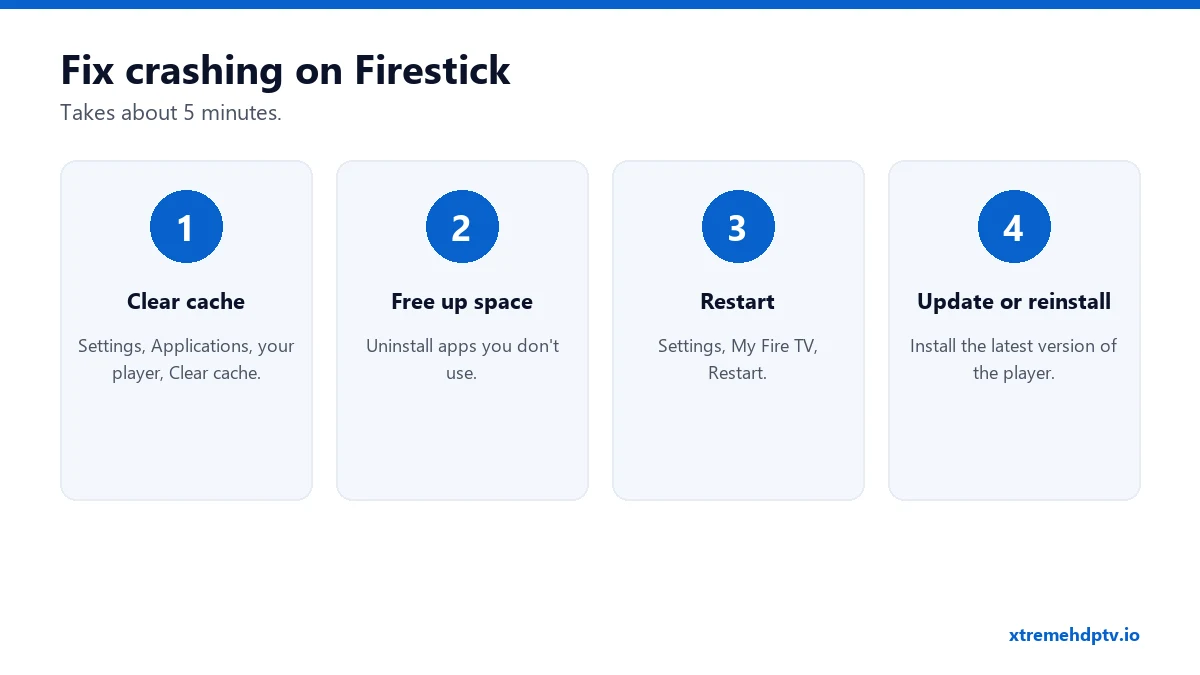
1. Clear the cache
Go to Settings › Applications › Manage Installed Applications, select your player (TiviMate, IPTV Smarters…), and choose Clear cache. Your login and favorites stay.
2. Free up storage
Check space under Settings › My Fire TV › About › Storage. Uninstall games and apps you don’t use. Aim for at least 1 GB free.
3. Restart the Firestick
Settings › My Fire TV › Restart. Or unplug it for 30 seconds. Firesticks rarely switch off fully, so memory fills up over days.
4. Update the player and Fire OS
Install the latest version of your player. Check Fire OS updates under Settings › My Fire TV › About › Check for Updates.
5. Clear data, if it still crashes
Same menu as step 1, but choose Clear data. This resets the app completely, so you’ll need to enter your login again. Keep your details handy (see the login guide).
6. Reinstall
Uninstall the player and install it again with Downloader. Our Firestick guide shows how.
Fix It on Android TV and Google TV
- Settings › Apps › your player › Clear cache.
- Remove apps you don’t use and check free storage.
- Update the player from the Play Store.
- Restart the box from the power menu.
- Still crashing? Clear storage (data) and log in again.
Fix It on Samsung and LG Smart TVs
- Samsung: hold the remote’s power button until the Samsung logo appears (a cold boot). Then delete and reinstall the app if needed. See the Samsung guide.
- LG: turn off Quick Start+, switch the TV off and on, then reinstall the app if needed. See the LG guide.
Make the App Lighter So It Stops Crashing
- Hide channel groups you never watch. Fewer channels means less memory used. In TiviMate: Settings › Playlists › Manage groups.
- Reduce EPG days. Loading 7 days of guide data for 20,000 channels is heavy. 2 or 3 days is plenty.
- Use Xtream Codes, not M3U. Xtream loads content in pieces. A huge M3U file loads everything at once. See M3U vs Xtream Codes.
- Use one player. Two IPTV apps installed on a small Firestick both use space.
When It’s Time for a New Device
If your stick is several years old, has the smallest storage, and crashes even after a reset, it may simply be too weak for a large modern playlist. A current Fire TV Stick 4K or a recent Android TV box makes a big difference and isn’t expensive.
FAQ
Will clearing cache delete my favorites?
No. Clearing cache keeps your login and favorites. Clearing data resets everything.
The app crashes only on one channel. Why?
That channel may use a format your player struggles with. Try its other version (HD, FHD) or switch the player’s video decoder in settings.
Is this a problem with my account?
Almost never. If the login is accepted and channels load before the crash, your account is fine. For other problems, see Xtreme HD IPTV not working.
Need help with your IPTV?
Our team is available 24/7 to help you install and use your subscription on any device.
CONTACT US ON WHATSAPP