
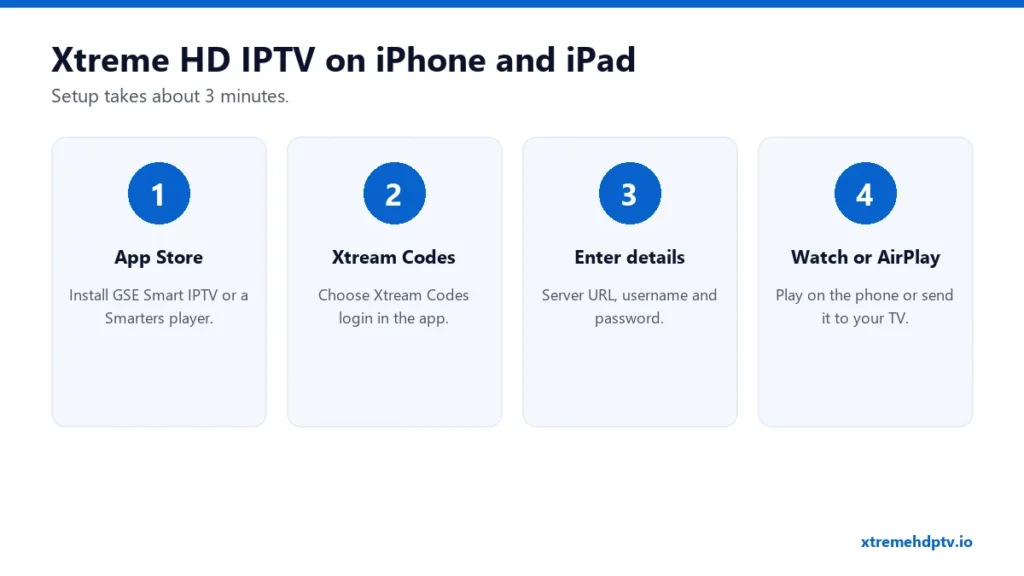
Your iPhone or iPad is the easiest second screen you have. You can watch the game in the kitchen, catch a show in bed, or follow a match on the train. Setting up Xtreme HD IPTV on iOS takes about three minutes. All you need is a player app from the App Store and your login.
Best iOS Apps for Xtreme HD IPTV
- GSE Smart IPTV: free to start, works on iPhone, iPad and Apple TV, and supports Xtream Codes, M3U and EPG.
- Smarters player: the iOS version of IPTV Smarters (listed on the App Store as a Smarters player). It has the same layout many people know from Firestick.
- iPlayTV: clean and fast, especially on iPad, with a good TV guide.
Any of them will do. If you also use an Apple TV, pick one that runs on both so your favorites feel familiar.
How to Set Up Xtreme HD IPTV on iPhone or iPad
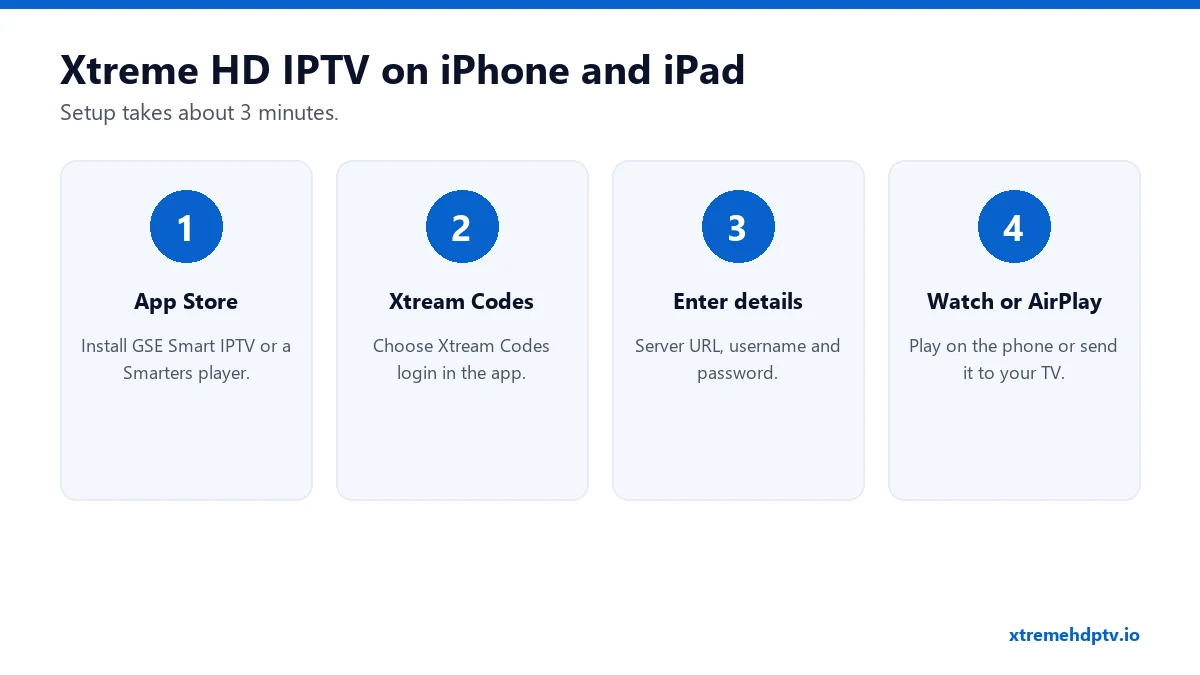
- Open the App Store, search for your chosen player, and install it.
- Open the app and choose Xtream Codes (sometimes shown as “Xtream Codes API” or “Login with Xtream”).
- Enter your server URL (keep the
http://and the port), username and password. - Save and wait a few seconds. Live TV, movies, series and the guide load.
On a phone, copy and paste works well. Copy the details straight from your order email. Just check that no space slipped in at the end. If the app refuses the login, our login guide covers every error message.
Prefer an M3U link? Most iOS players accept it under “Add M3U URL” or “Remote playlist”. See the M3U URL guide.
Watch on Your TV With AirPlay
No Smart TV app? You can send the picture from your iPhone to the TV:
- Connect your iPhone and the TV (or Apple TV) to the same Wi-Fi network.
- Start a channel in your player.
- Tap the AirPlay icon in the player, or open Control Center and use Screen Mirroring.
- Choose your TV.
AirPlay works with Apple TV and with many recent Samsung, LG and Roku TVs. It’s handy for a one-off, but a player installed on the TV itself gives a steadier picture. For that, see our Apple TV guide.
Save Mobile Data
Live TV on mobile data adds up fast. A rough guide:
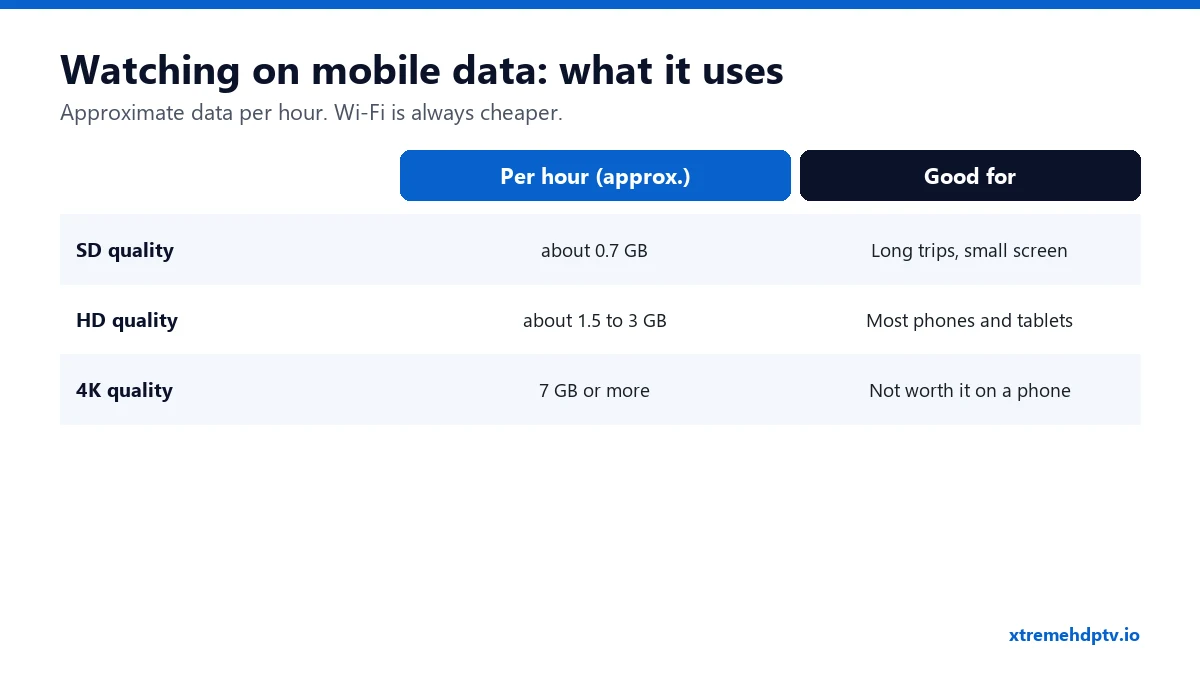
- Pick SD or HD versions of channels when you’re on mobile data. 4K on a phone screen wastes data for little visible gain.
- Watch on Wi-Fi whenever you can.
- Check how much data you use in Settings › Mobile Service (or Cellular) and turn off data for the player app if you only want it on Wi-Fi.
Common iPhone and iPad Problems
The stream stops when I lock the phone
Many players pause in the background. Use Picture in Picture if your app supports it: start a channel, then swipe up to the home screen.
“Max connections reached”
Someone else on your plan is already watching. Your plan sets how many screens can play at the same time. The plans guide explains devices.
Buffering on Wi-Fi
Move closer to the router or switch to the 5 GHz network. More fixes in our buffering guide.
FAQ
Is there an official Xtreme HD IPTV app on the App Store?
You watch with a third-party player such as GSE Smart IPTV or a Smarters player. Your Xtreme HD IPTV login works in any of them.
Can I watch outside the US on my iPhone?
Yes, anywhere with a good internet connection.
Does it work on iPad?
Yes. The setup is exactly the same, and the bigger screen makes the TV guide easier to use.
Need help with your IPTV?
Our team is available 24/7 to help you install and use your subscription on any device.
CONTACT US ON WHATSAPP